Getting Started
Create Your Campaign
After signing in, you'll create a workspace for your campaign. Each workspace is a self-contained campaign with its own characters, sessions, world lore, and art. Invite your players — they see exactly what you've shared (entities, published journals, approved art) and nothing you haven't. A 'View as Player' switch lets you check what the table can see at any moment.
Add Your Characters
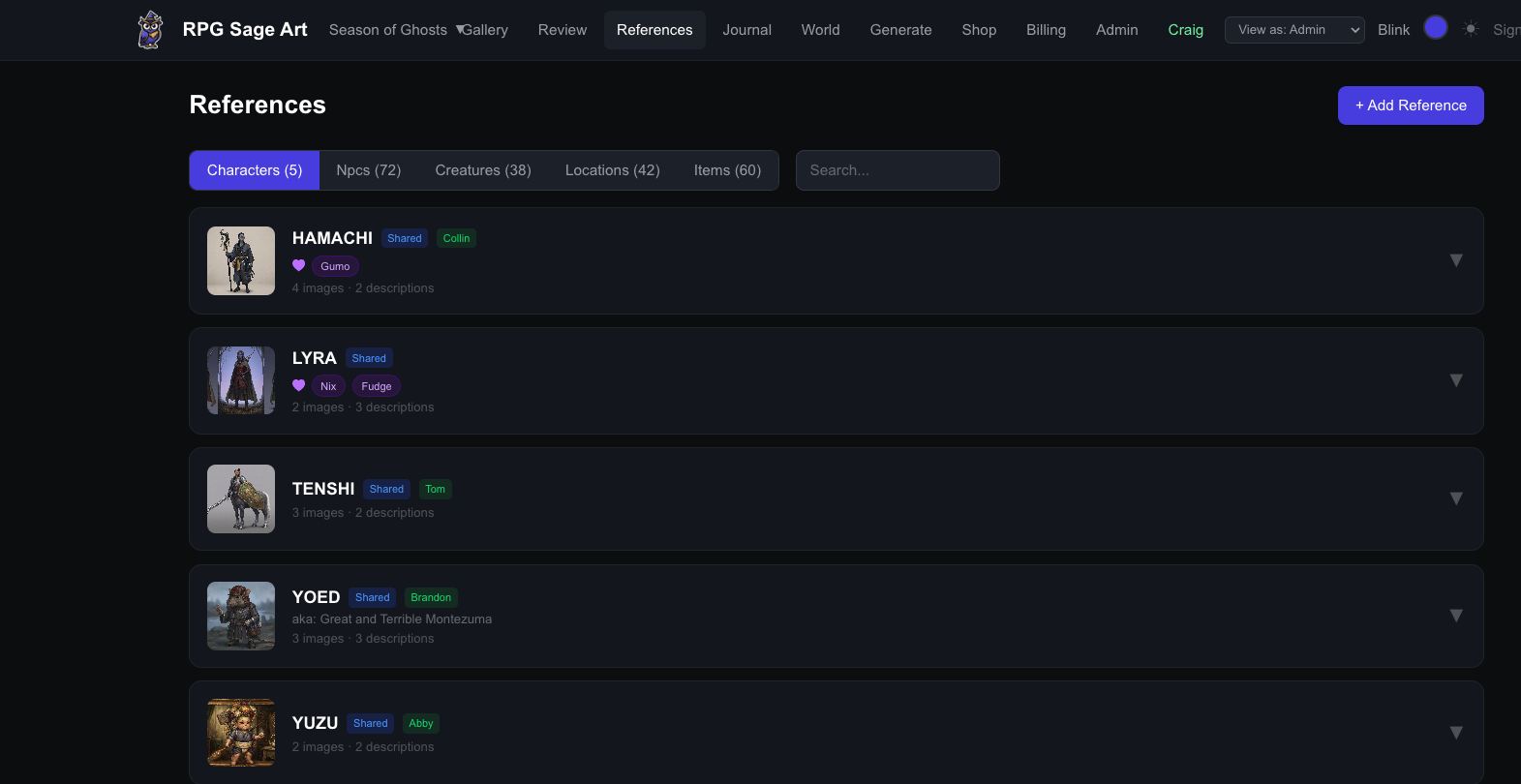
Head to the References page and add your party members. Upload or paste reference images, write descriptions of their appearance, and RPG Sage Art will use these to keep characters consistent across all generated art. You can also add NPCs, creatures, locations, and items.
Set Your Style
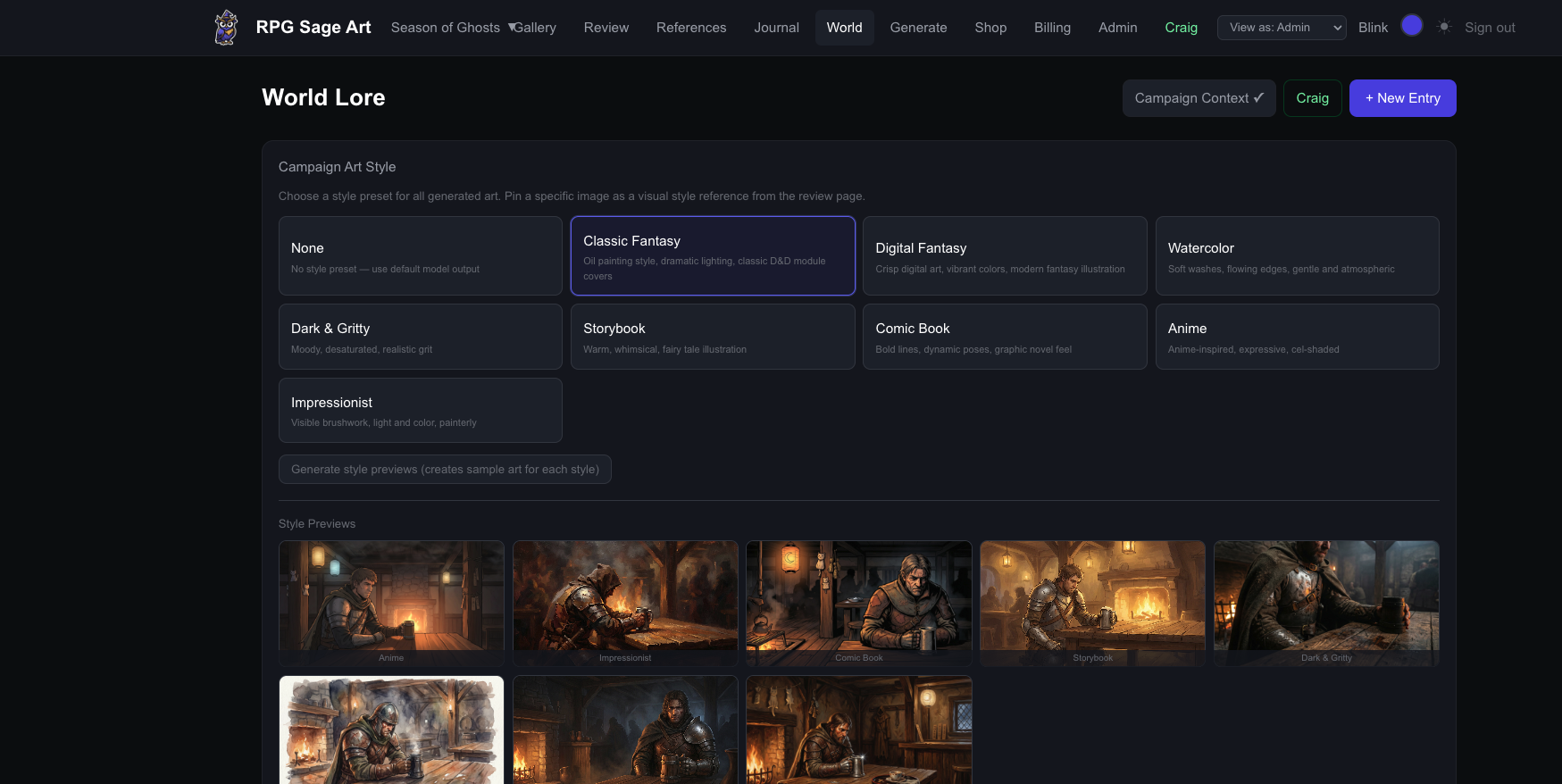
Each campaign can have a style reference — an image that sets the visual tone for all generated art. Upload a piece of art you love, or choose from built-in style presets. Every scene generated will match this aesthetic.
Battlemaps
Generate a Map From a Sentence
Describe the encounter — 'a burning keelboat moored at a lamplit dock' — and get a top-down battlemap sized to a grid you choose. Tactical encounter maps run at 5 ft per square; city, region, and continent maps declare their own scale for overland travel. Maps are auto-tagged into named regions ('the docks', 'the bar') that appear in the map legend.
Tactical View: Walls, Terrain, Elevation
Paint walls and difficult terrain in the wall editor — or tick Walls from artwork to seed impassable cells from the map's dark areas. Regions carry elevation, and the distance tooltip computes real movement cost — cheapest path, climb feet, difficult-terrain squares. Players can't drag a token somewhere it can't legally stand.
A Living Map
Layer weather zones, day/night moods, and light sources — torches, campfires, candles, magical glows, even magical darkness — that flicker, follow tokens, tint the rain, and light up the characters standing in them. Ask Craig for 'candlelit' or place and drag lights by hand. Players light their own torches and cast Light or Darkness from their cockpit at true book distances. Trigger scene-change effects from the legend — the bridge collapses, the docks flood — and just that part of the map re-renders. Nothing is permanent: everything toggles.
Tokens
Drop entity tokens (they use your reference art automatically), asset props, or the whole party as one traveling token. Tokens carry HP bars, condition badges, facing, and size. Double-click a token to peek at the portrait; the GM can hide tokens for ambushes.
Fog of War, Done by Light
Set a map to pitch dark and the unlit parts genuinely don't exist for players — walls block light for real, torches carve out what the party can see, and their movement is limited to squares they can actually see. Pre-place snuffed lights with auto-reveal and the dungeon wakes up room by room as the torchbearer walks it. Darkvision, blindsight, and truesight come straight off the character sheet and shape each player's personal view.
Download the Map
The Download button exports a flattened PNG — choose whether to bake in the damage/effect overlays (the collapsed bridge stays collapsed) and the grid. Perfect for printing or importing into another VTT.
Craig Runs Maps Too
Ask by chat or voice: 'make a flat top-down map of the throne room', 'add four thugs by the door, statted', 'flood the market'. Craig builds maps, places and stats tokens, redraws regions in place, and answers with your campaign in mind. Long-press the map to ping a spot — 'here' means that ping.
Play Live (Virtual Tabletop)
One Link Seats the Table
Start a live session and share the link. Players open it on any device — no installs, no accounts — pick their character by name, and get their token highlighted in their color. As you navigate between maps, every player's screen follows.
Present to the Table
Push art, handouts, text, a character sheet, or a skill-check prompt to every screen at once — or target a single player for a secret only they see. Prompt a save with a DC and the outcome text applies automatically when they roll.
Combat
Roll initiative and the tracker seats everyone; the active turn pulses on the map. Players tap their own token to open their mini-sheet and roll attacks, checks, and saves from it. The GM's cockpit rolls monsters against real AC, spends legendary actions, and applies damage straight to HP bars.
Cast From Your Cockpit
Tap your token and your spells are buttons: attack spells roll with your real bonus, save spells make the monster roll against your DC, and the ⚡ Activate bar handles the rest — rage, bless yourself, mount the Broom of Flying, drink a potion. Spell slots burn for real, concentration is tracked (take damage and the CON save card appears on your screen with the DC), and ending an effect cleans up everything it applied.
Conditions That Actually Work
When Craig or the GM applies a condition, it mechanically works: poisoned imposes disadvantage, restrained pins the token at 0 speed, frightened warns the player when they move toward the source. Custom effects — disarmed, cursed, drunk — get invented on the fly with real mechanical teeth. Duplicate monsters auto-number themselves (Skeleton 1, 2, 3...) and carry their own HP and conditions — hold person the third skeleton, not the squad.
Dice, Out Loud
All rolls go through the server and land in a shared table feed with advantage/disadvantage, DCs, and crit styling. There's a freeform dice bar for players, and the GM can roll as any NPC. Nobody 'forgets' a modifier.
Character Sheets & Dice
Two Modes, One Sheet
Full Mode is a complete 5e sheet — abilities, attacks, spells, features, inventory. Easy Mode shows the same character as color-coded strengths and outcomes with no numbers at all: perfect for kids, new players, or anyone who'd rather play than do math. Switch anytime.
Craig Fills It In
Describe your character — or name a monster — and Craig builds the sheet from SRD rules: stats, attacks, spell save DCs, multiattack routines, legendary actions. Homebrew creatures get the closest official analog, reflavored, with a note about what he assumed.
The Rules Engine
Every SRD spell — all of them, cantrips through 9th level — plus class features and common magic items are wired into a real effect engine. Cast Bless and the +1d4 actually lands on attack rolls; Hunter's Mark marks the target; Goodberry puts berries in your inventory; Pass without Trace boosts Stealth checks and nothing else. Content from other books you own gets defined once and works forever. Slots, concentration, exhaustion levels, and rest-refilling resource pools are all enforced, with the GM able to overrule anything.
Gold Is Real
Sheets track gold, and it moves: buy into a tavern game and it leaves your purse as a chip pile on the table; cash out and it comes back. Craig adjusts inventory when the fiction says you won, lost, bought, or burned it.
Rolling
Every rollable thing on the sheet is a button. Rolls resolve server-side with your real modifiers, honor advantage and conditions, and land in the table feed. Prompted checks from the GM show the DC and resolve the outcome automatically.
Tavern Games
Games Live on the Table
Search 'games' in the map's token bar to drop a game station — Baldur's Bones, Chuck-a-Luck, High Card, coin tosses, or your own custom game with house rules. Players tap the station to open that game: its rules, its dice, its cards, its pot.
Gold = Stakes
Buy in and gold moves from your character sheet onto the map as a chip pile in your color. Bets push chips into the game's pot token; the GM awards the pot to the winner; cash out returns the pile to your sheet. Every move lands in table chat.
Cards Nobody Can Peek
Decks live on the server. Draw to a hidden hand only you (and the dealer GM) can see, draw face-up, reveal, or muck. Deals go to everyone with chips on the table — buying in is literally taking a seat.
Cheating Is a Skill Check
Palming the dice is a hidden Sleight of Hand roll — succeed and you get loaded dice for the turn under an honest-looking label. Other players can spend their table action to read you with Insight. Craig referees by each game's house rules.
Audio & Soundboard
Music That Follows the Map
Every map can carry its own theme — walk the party from the tavern into the sewers and the music crossfades with them. Pin session-wide tracks, fire one-shot stingers (dragon roar, sad trombone, thunderclap) from the soundboard, and let Craig set the mood by voice: 'give the cathedral a sacred choir'. He generates original music and sound effects on demand.
Character Voices
Give an NPC a voice: pick from the voice palette, have Craig write and perform a monologue or a two-character exchange, or record your own take on the mic. Voice clips live in the audio library alongside music and effects, and fire from the soundboard like stingers.
Your Own Library
Upload your own tracks (up to 60 MB, FLAC welcome) to the Audio chapter on the World page, name them, and organize by kind — music, ambience, stingers, voices. Everything is playable at the table and attachable to journal share pages as a soundtrack.
Session Capture & Auto-Journals
Hit Record, Play Your Game
Start the 🎙 recorder from any page and it follows you across maps and screens for the whole session. When you stop, the full session transcribes with speaker labels, the journal assembles itself — summary in your configured style, session recap, plot-point updates — and the entry titles itself from what actually happened. Recording again the same night appends to the same journal.
Hey Craig (the 👂 Listener)
Turn on the listener and Craig hears the table live. 'Hey Craig, make a scene of Jimminy leaping the chasm' — thirty seconds later the art is rendering. He hears mechanics too: rolls get prompted, effects get cast, moods get set. If the party elaborates right after, he redoes the work instead of piling up duplicates. Say 'quietly' and he acts without announcing.
You Stay in Charge
Anything high-stakes — mass damage, deleting things, big changes — becomes a confirmation card on your screen with a short countdown or an explicit approve button. The table timeline (rolls, moves, casts, buy-ins) is woven into the journal recap; Craig's own actions are noted but never narrated as story.
Session Journals
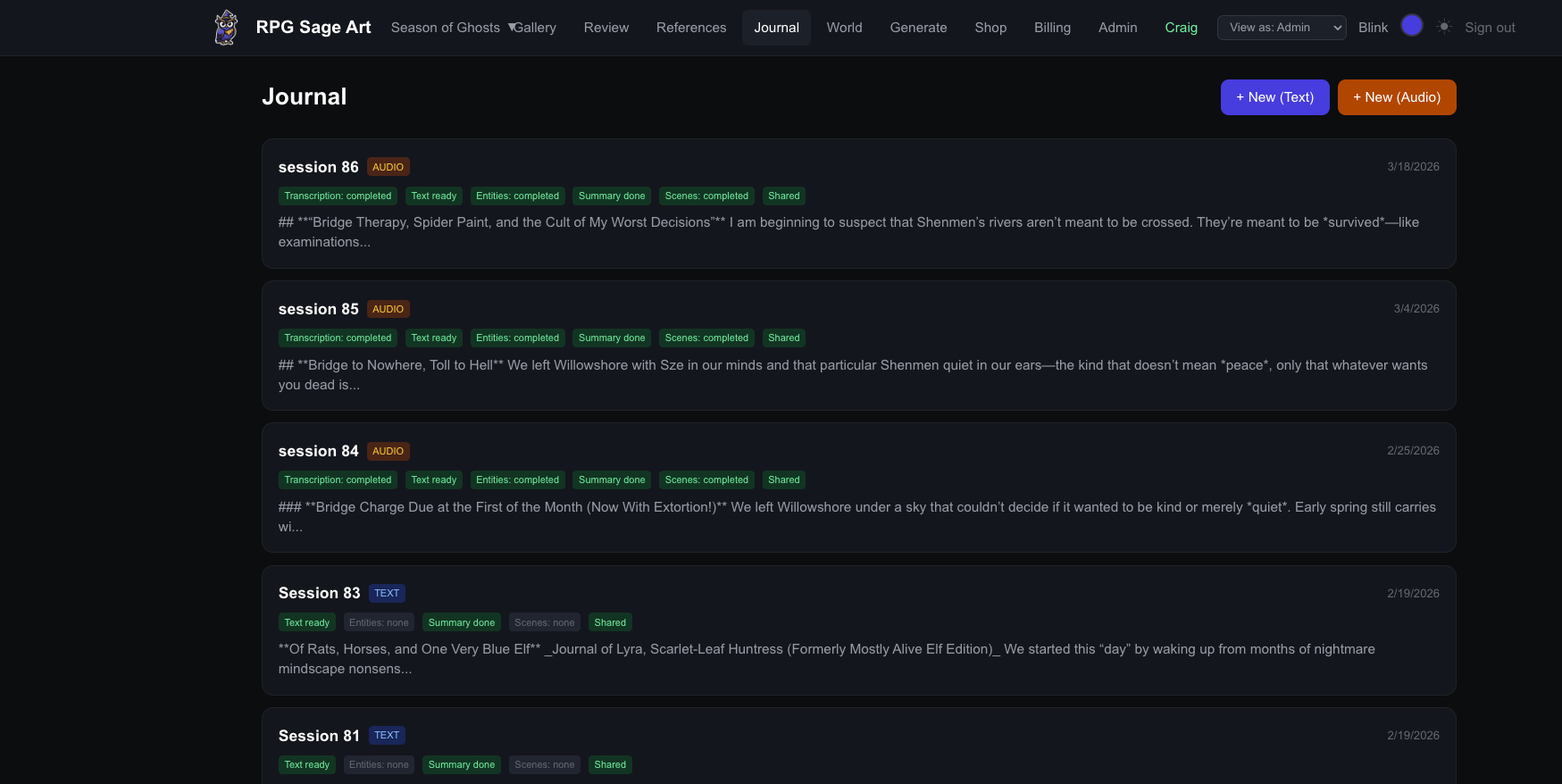
Record or Paste Your Session
On the Journal page, create a new entry and either paste your session notes or record audio directly in the browser. For audio, RPG Sage Art uses AssemblyAI to transcribe with speaker identification — it'll figure out who said what.
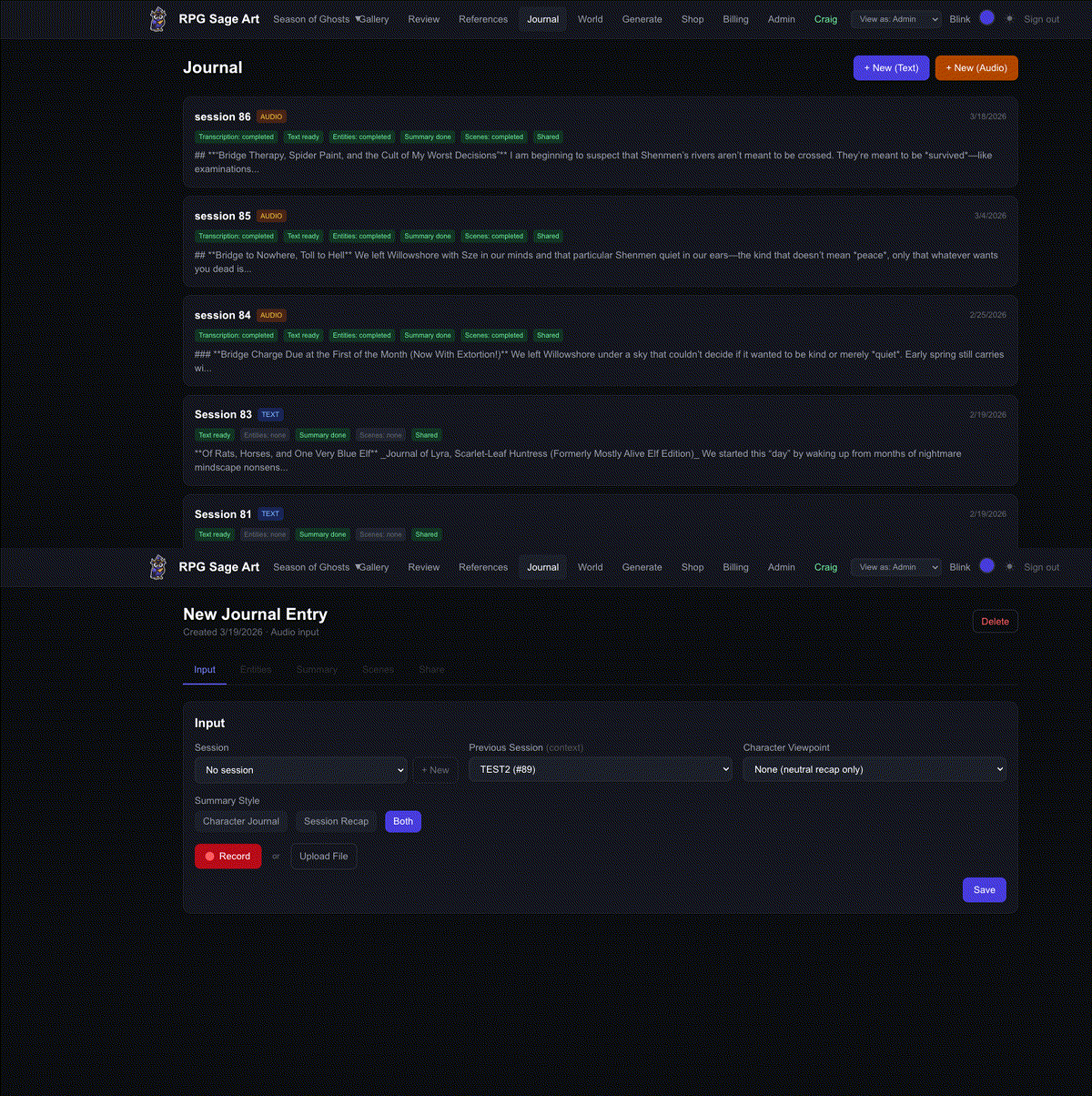
Entity Extraction (Optional)
RPG Sage Art can scan your session text and identify every character, NPC, and creature mentioned. It matches them to your existing references or suggests creating new ones. You can skip this step if you want — head straight to scenes.
Summary Generation (Optional)
Generate an in-character journal (written from a character's perspective) and/or a neutral session recap. These are great for sharing with your group or keeping campaign records. Also skippable.
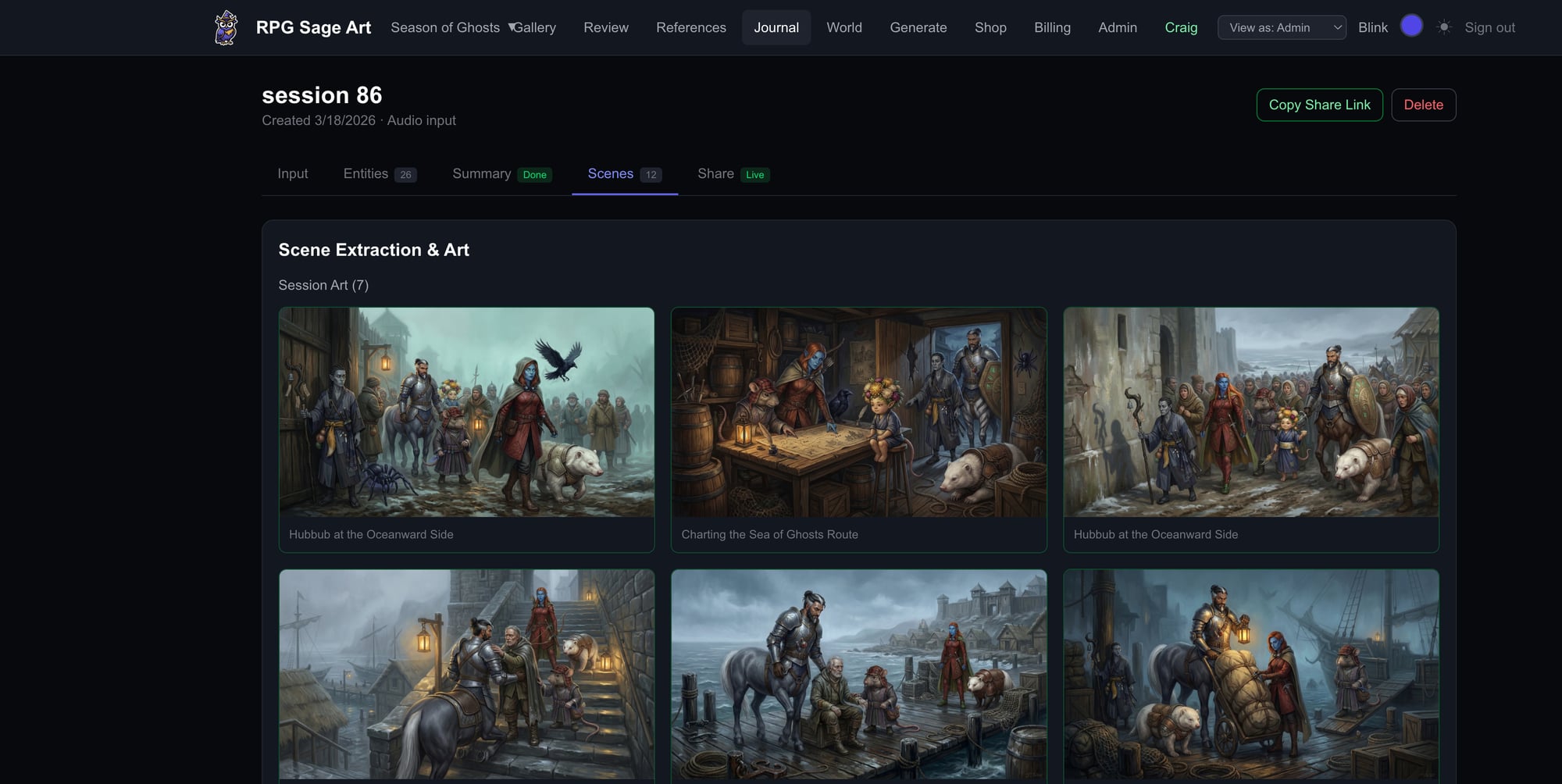
Scene Extraction & Art
This is where the magic happens. RPG Sage Art extracts 8-12 key scenes from your session and generates art for each one. Your character references are automatically included — the AI knows what everyone looks like. Companions (familiars, animal companions) are auto-included when their owner appears in a scene.
Share Your Session
Generate a share link to create a public page with your journal entry and approved art. Perfect for sharing with your group between sessions or showing off your campaign.
Art Generation
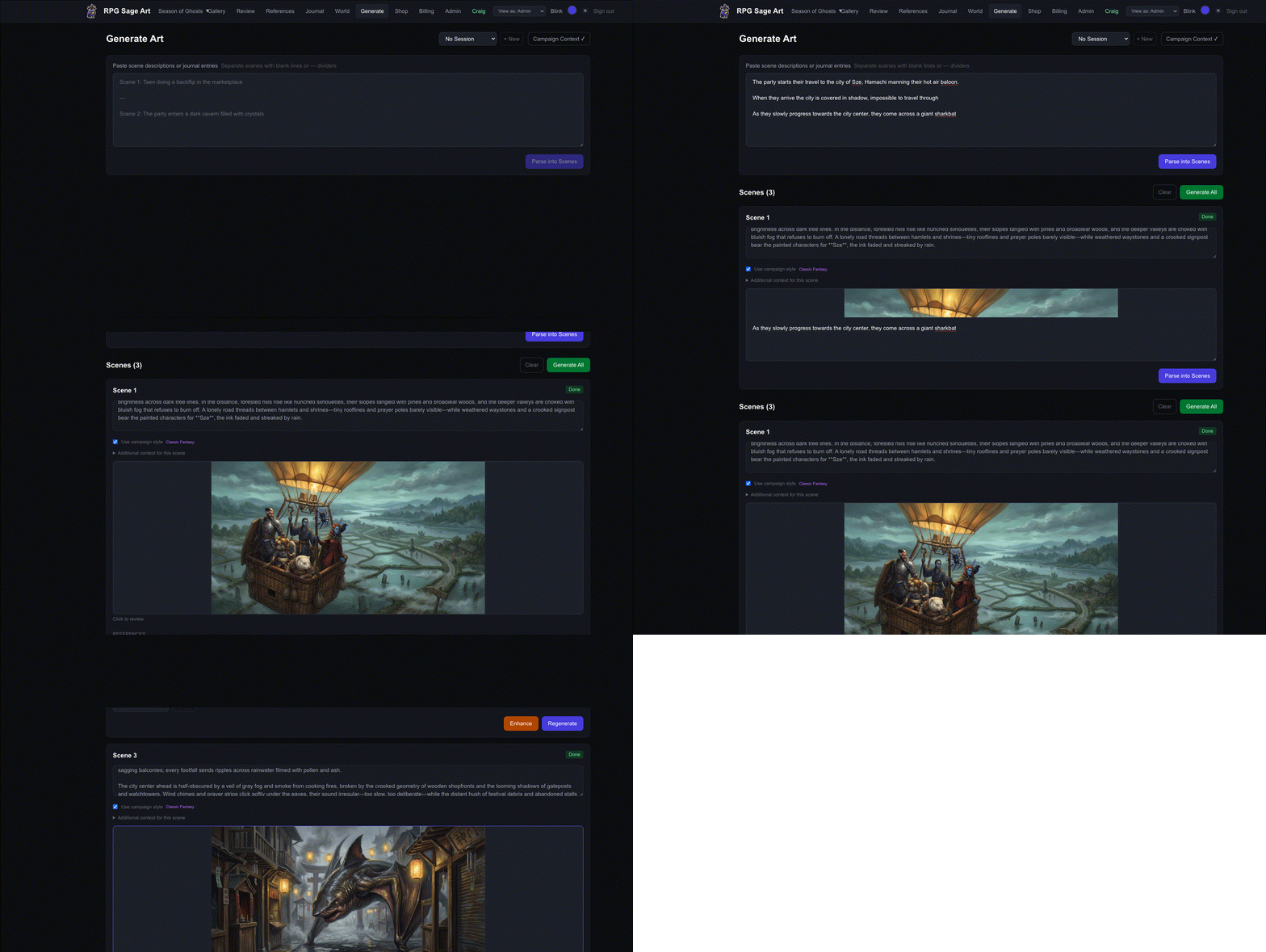
The Generate Page
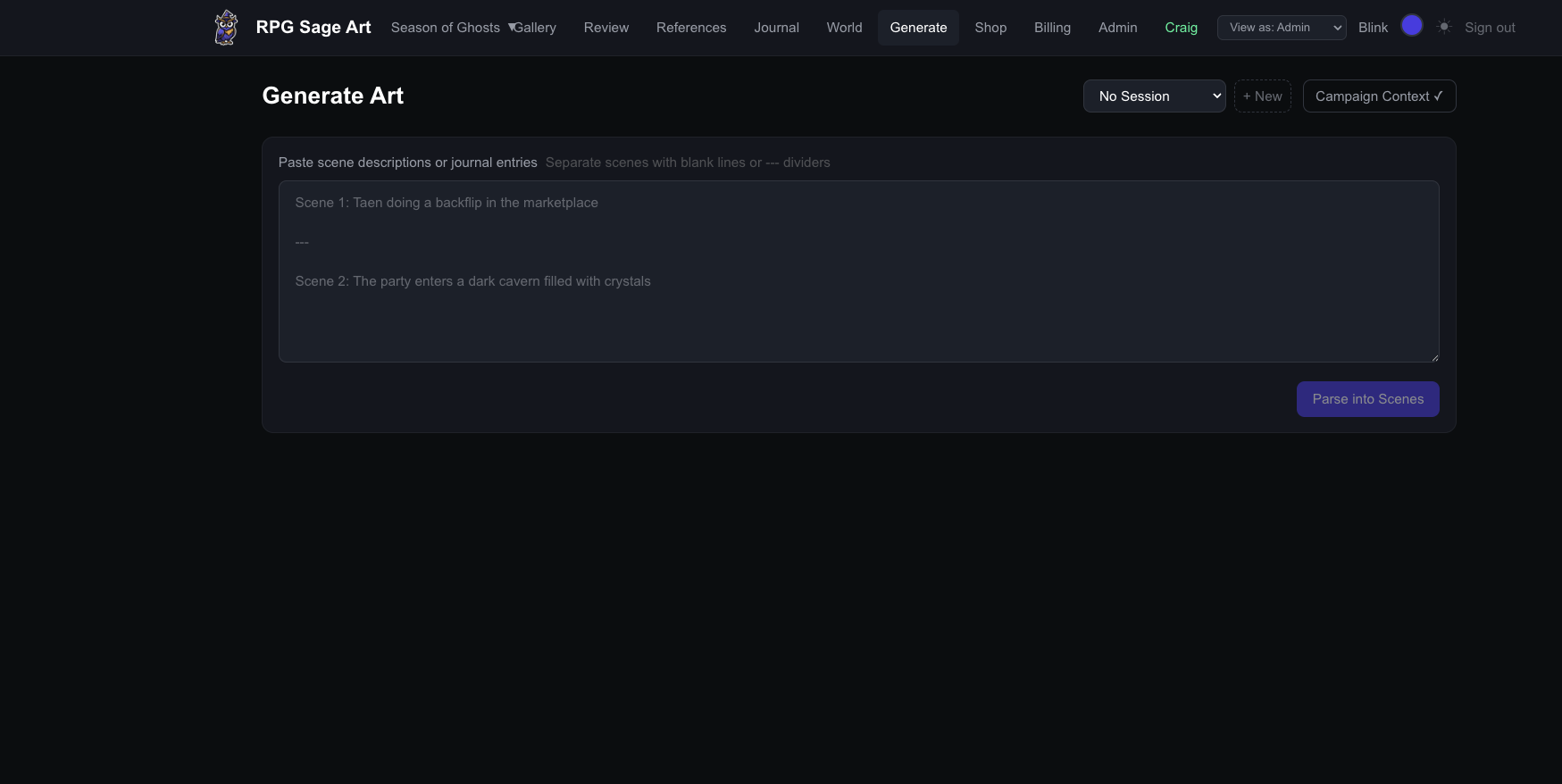
The Generate page lets you create art outside of the journal flow. Describe a scene, select which characters appear, and RPG Sage Art builds an enhanced prompt with your campaign context, character descriptions, and reference images — then sends it to our image generation pipeline.
Character References Matter
The more detail in your character references, the better the results. Include species, build, clothing, distinctive features, and weapons. Upload multiple reference images from different angles. RPG Sage Art sends all of this to the AI so it can match your characters accurately.
Companions Are Auto-Included
Link familiars, animal companions, and mounts to their owner on the References page. When the owner is selected for a scene, their companions automatically appear in the entity list with a companion badge. You can remove them per-scene if they shouldn't be in a particular image.
Style References
Set a campaign-wide style reference image to maintain visual consistency. You can also override the style per-scene if a particular moment calls for a different aesthetic — a dark dungeon scene might use a different reference than a bright market scene.
Enhance Before Generating
The Enhance button rewrites your scene description into a detailed art prompt. It weaves in character details, campaign context, and composition suggestions. You can edit the enhanced version before generating.
Character References
Entity Types
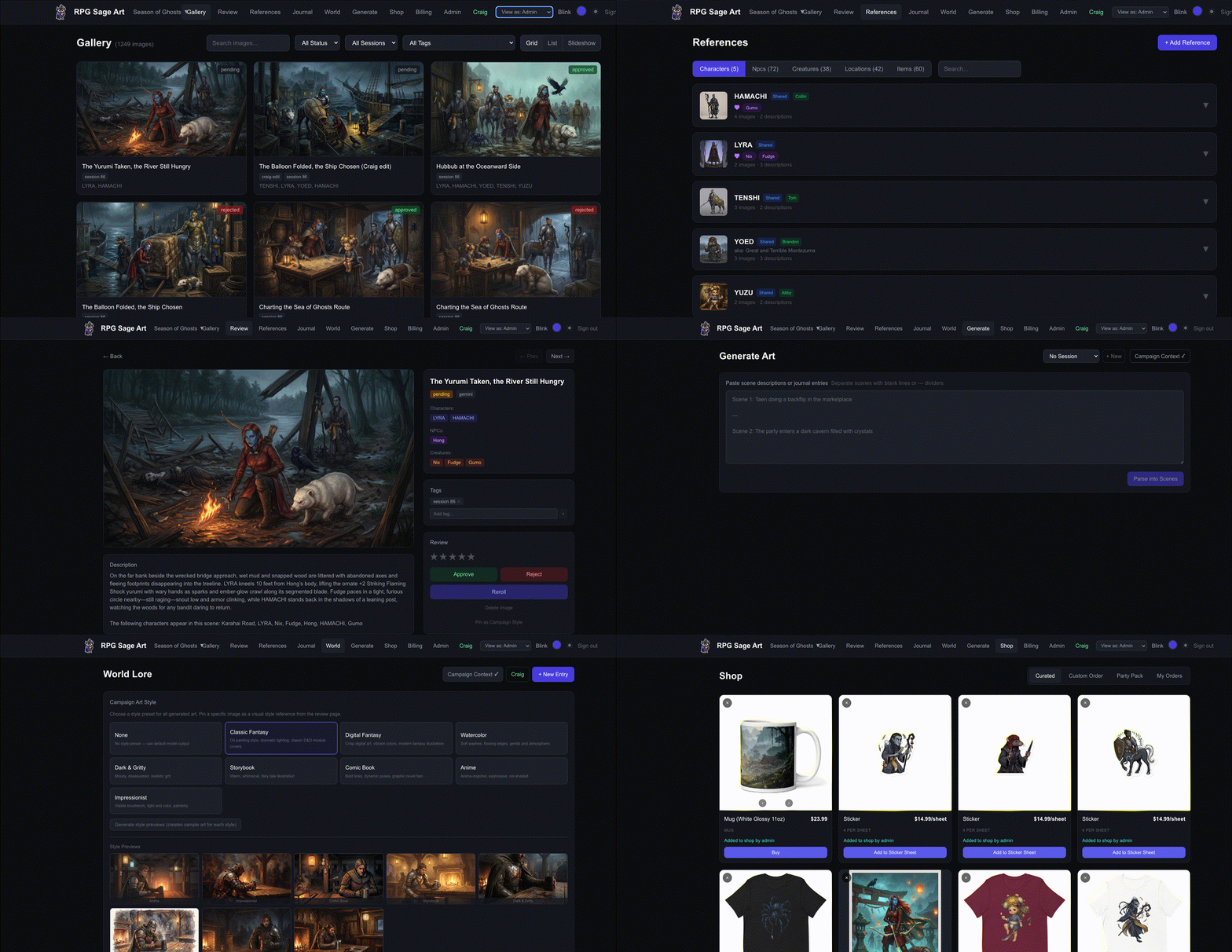
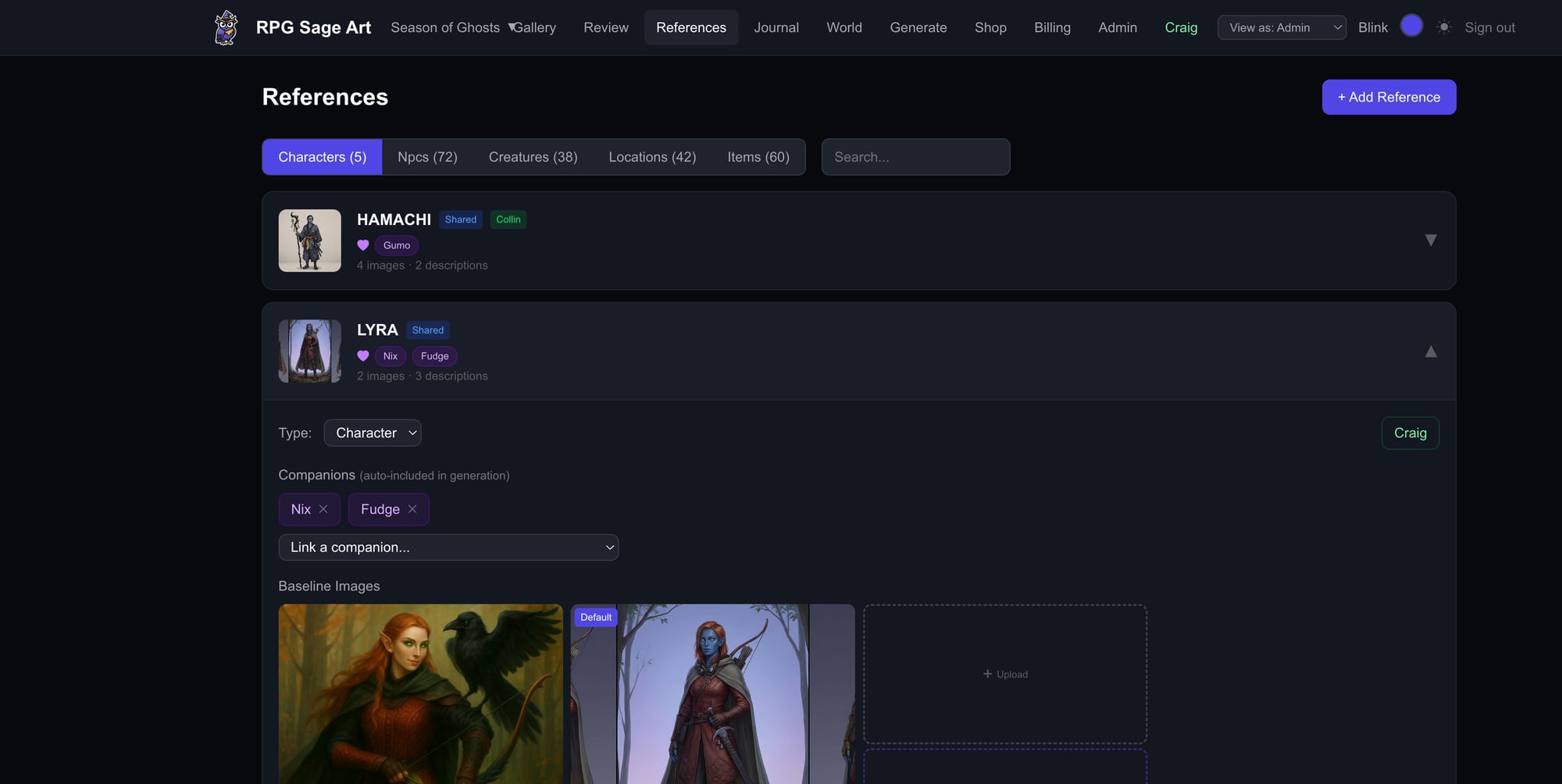
RPG Sage Art supports five entity types: Characters (PCs), NPCs, Creatures, Locations, and Items. Each has its own tab on the References page. Characters and NPCs can have companions linked to them.
Multiple Descriptions
Each entity can have multiple descriptions — useful when a character changes over time. Mark one as default for art generation. During scene generation, you can pick which description to use per-scene.
Multiple Images
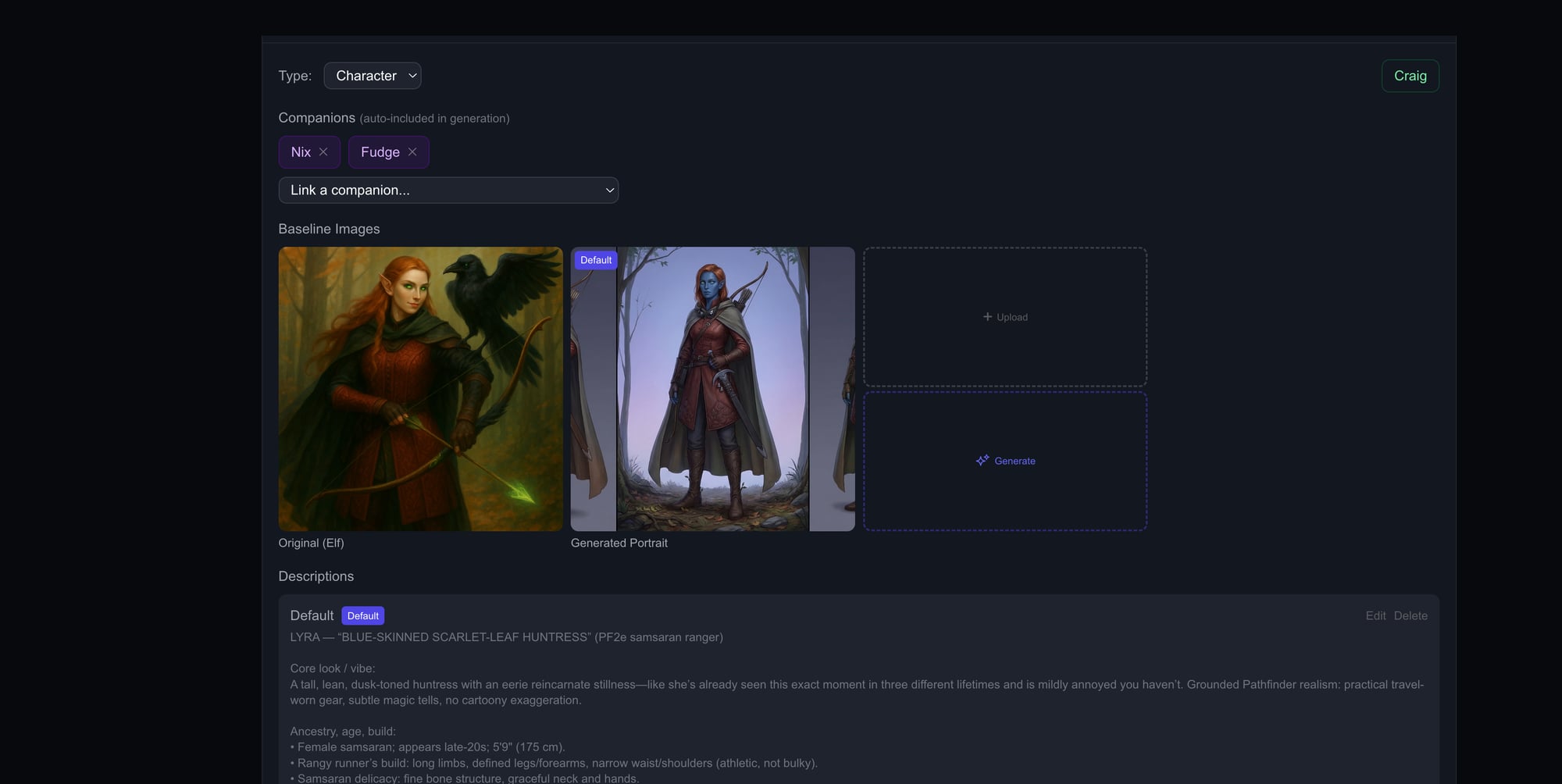
Upload reference images, generate portraits with AI, or let Craig create them. Each entity can have multiple images with labels (e.g., 'Full Body', 'Close-Up', 'Battle Armor'). Mark one as default — it's used when the entity appears in scenes.
Companions
Link creatures to their owner using the 'Companion of' dropdown on creature cards, or use the Companions section on character cards. Linked companions are automatically included when their owner is selected for art generation.
Craig Can Help
Click the Craig button on any entity card to ask him to research the entity (great for monsters from published adventures), write descriptions, or generate reference art. He has access to web search and knows your campaign context.
Craig, Your Art Director
Who Is Craig?
Craig started as your AI art director and grew into a co-GM. He reviews and tags every generated image (often sarcastically), builds maps and monsters, casts spells through the rules engine, sets music and lighting, referees tavern games, and listens at the table. He's powered by a curated mix of models from OpenAI, Anthropic, and Google — and knows your entire campaign: characters, world lore, recent sessions, everything.
Image Review
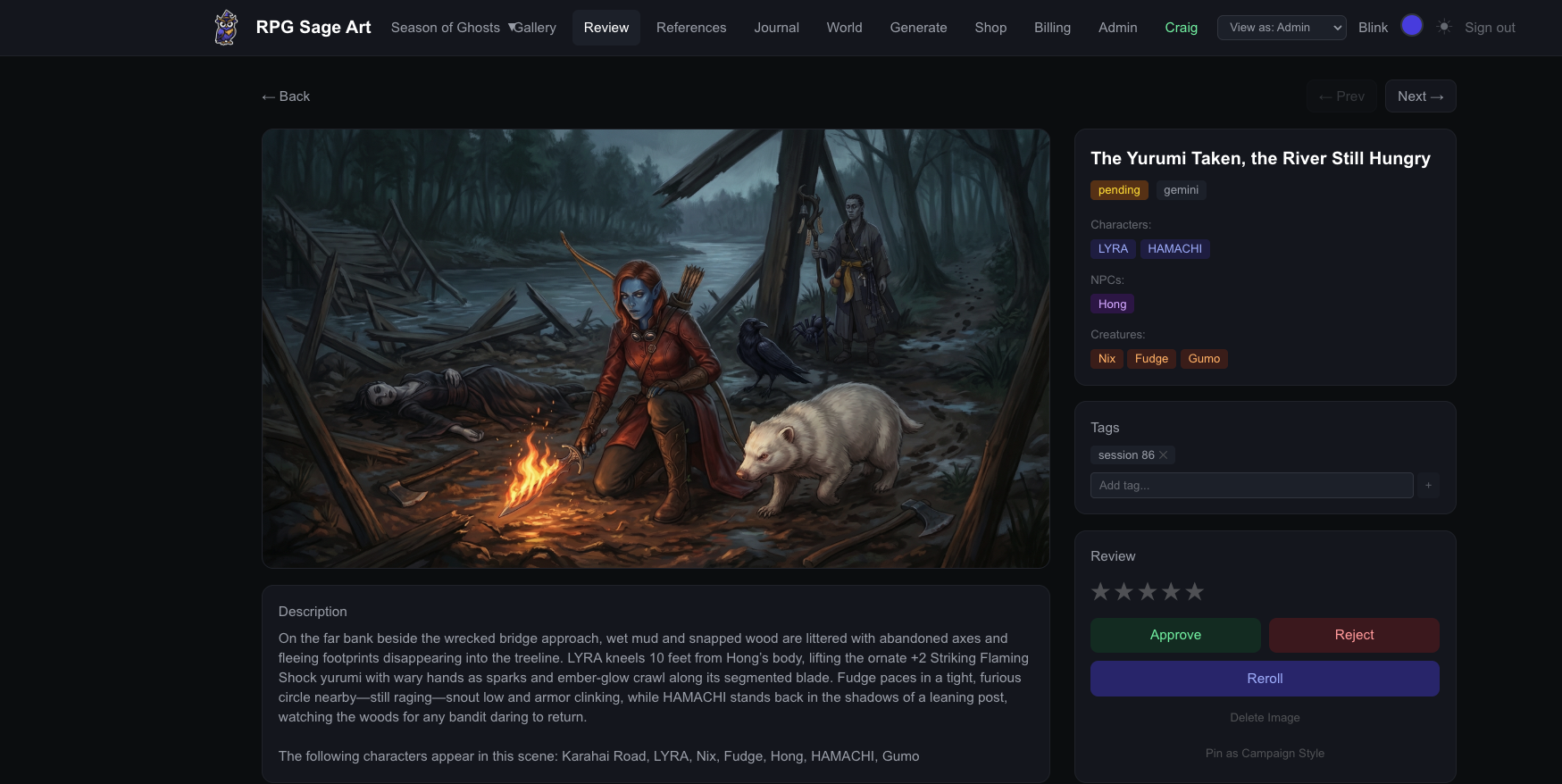
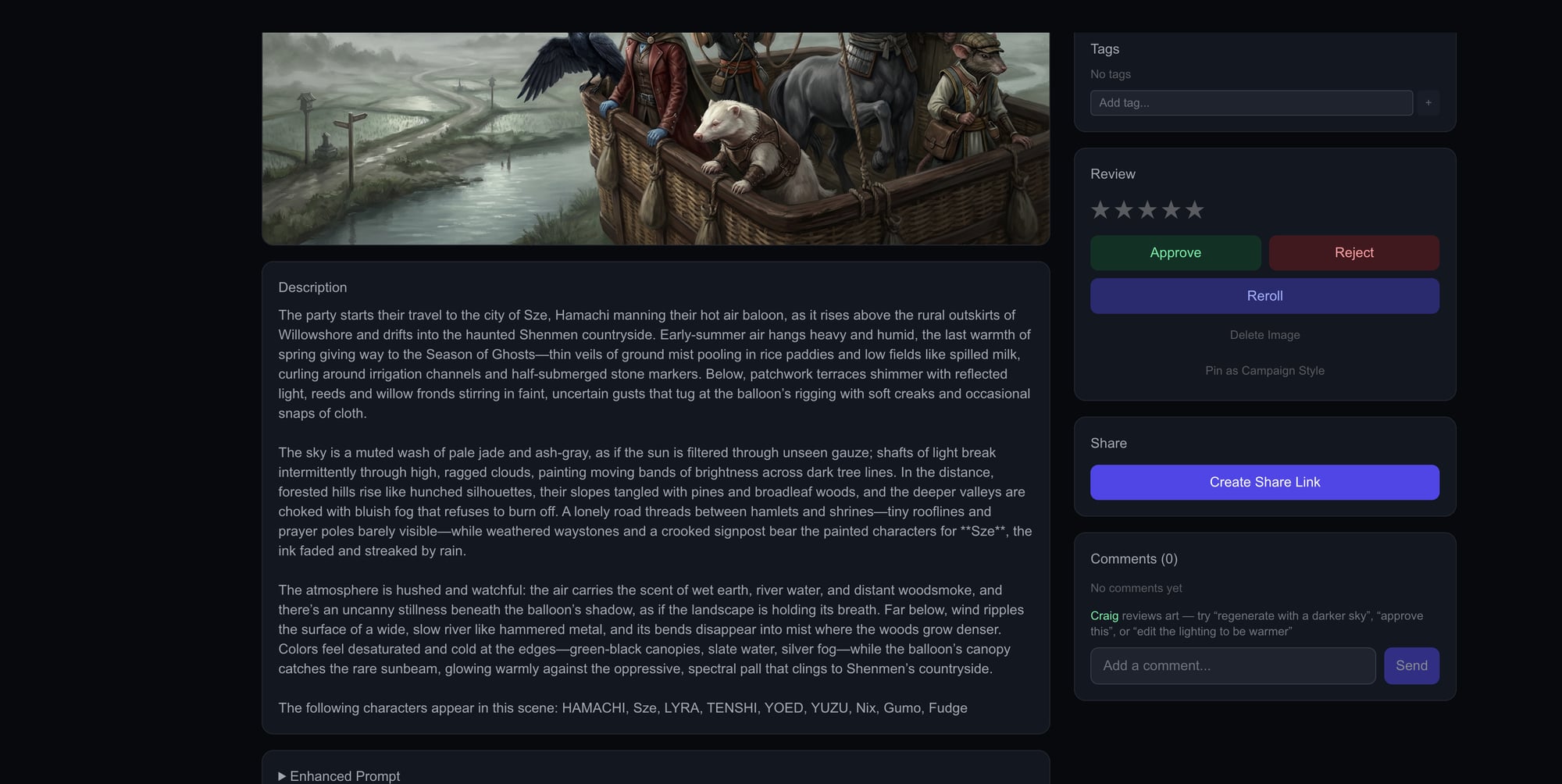
When you view an image on the Review page, you can leave comments. Craig responds automatically — he'll critique the art, suggest edits, or regenerate the image entirely. He can also approve or reject images for you.
Journal Chat
On the Journal page, Craig can help refine scenes, adjust descriptions, add or remove scenes, and tweak entity selections. Use the per-scene Craig button to discuss a specific scene, or the main Craig button for broader session-level changes.
Entity Research
On the References page, Craig can research monsters and NPCs from published adventures. Tell him to 'look up what a Guhdggi looks like' and he'll search the web, write a description, and generate reference art.
World Lore & Session Prep
On the World page, Craig helps manage your campaign's lore — factions, religions, plot points, quests — and the GM-only Prep tab lets him interview you about the next session, suggesting NPCs, maps, and plot beats he can create on the spot.
At the Table, By Voice
During a live session Craig is your co-GM: he builds maps, stats monsters, applies conditions, presents art, and referees tavern games. Hold the backtick key (or tap the mic pill) and just talk — dictation lands wherever you're typing, or goes straight to Craig.
World Building
Campaign Context
Your campaign context is a living document that describes the current state of your game — where the party is, what's happening, major plot threads. It's used by both Craig and the art generator to keep everything consistent with your story.
World Entries
Track factions, religions, quests, plot points, and lore as structured entries. Each has a type, status (active, resolved, background, archived), and tags. Craig uses these for context when reviewing art and chatting about your world.
Custom Merch
From Art to Merch
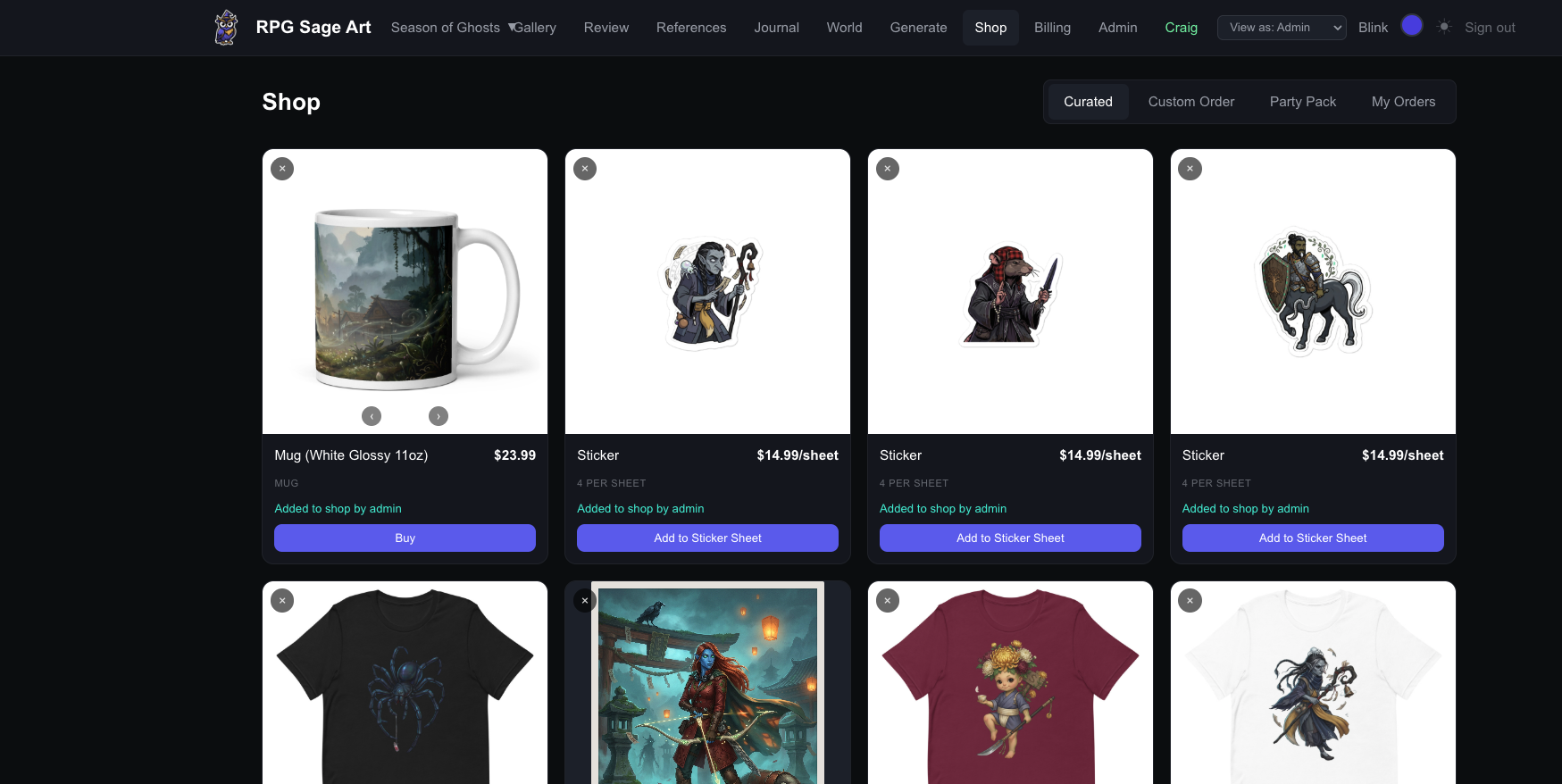
Turn your favorite campaign art into real products. On the Shop page, select an approved image and choose a product — t-shirts, posters, mugs, or sticker sheets. Craig picks the perfect shirt color based on the art's palette.
Sticker Sheets
Sticker sheets feature your party's character portraits as large stickers with smaller companion/creature stickers filling the gaps. Background removal and kiss-cut outlines are applied automatically.
Print & Ship
All merch is printed and shipped by our curated production partners. Photorealistic mockups are generated so you can preview before ordering. Shipping is included in the price.
Gallery & Review
Gallery
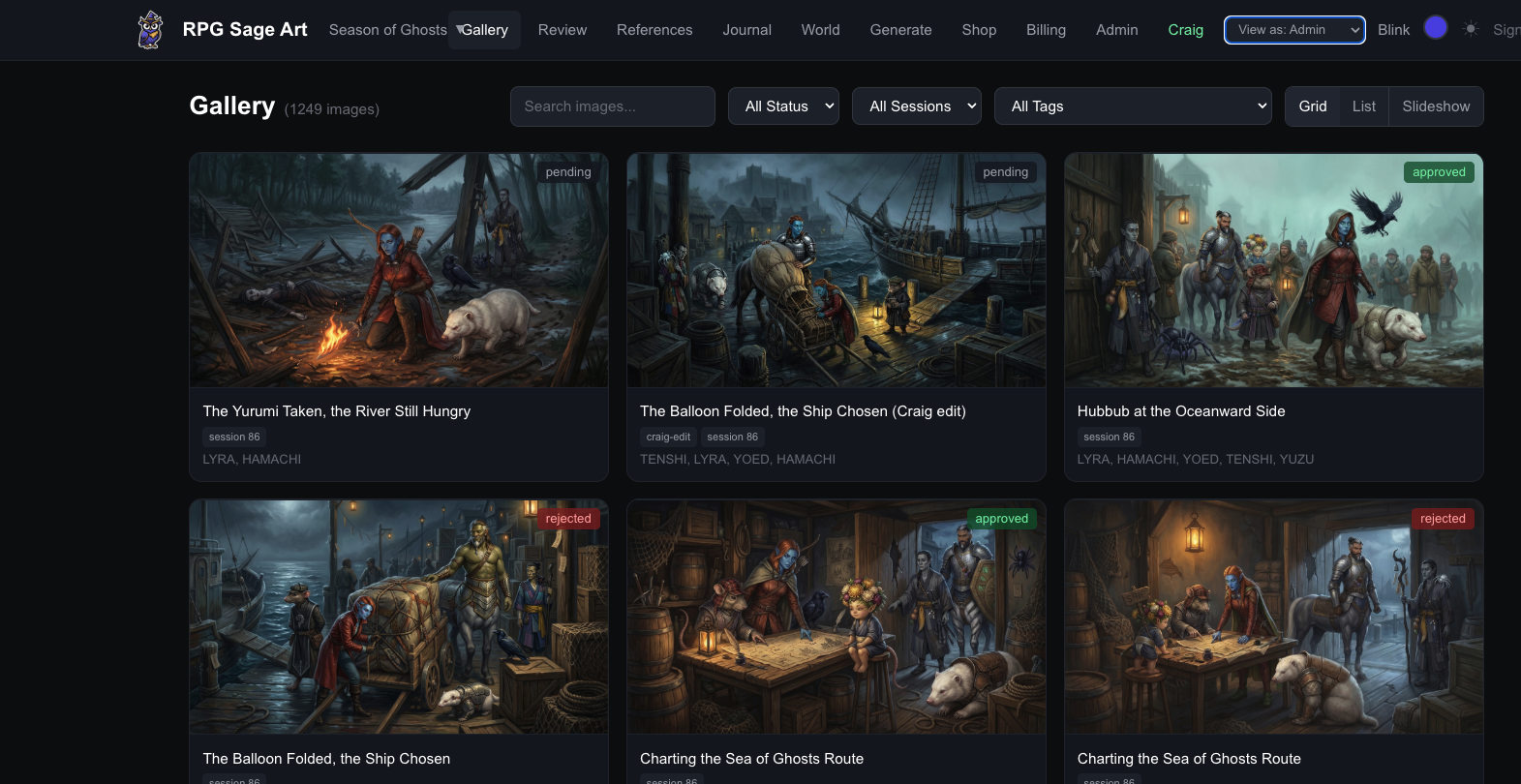
Browse all generated art with filters for session, status, tags, and search. View in grid or list mode, or launch the slideshow for a cinematic walkthrough of your campaign's art.
Review Queue
The Review page shows pending images waiting for your approval. Rate, approve, or reject images. Approved images appear on share pages and are eligible for merch. Leave comments to trigger Craig's review.
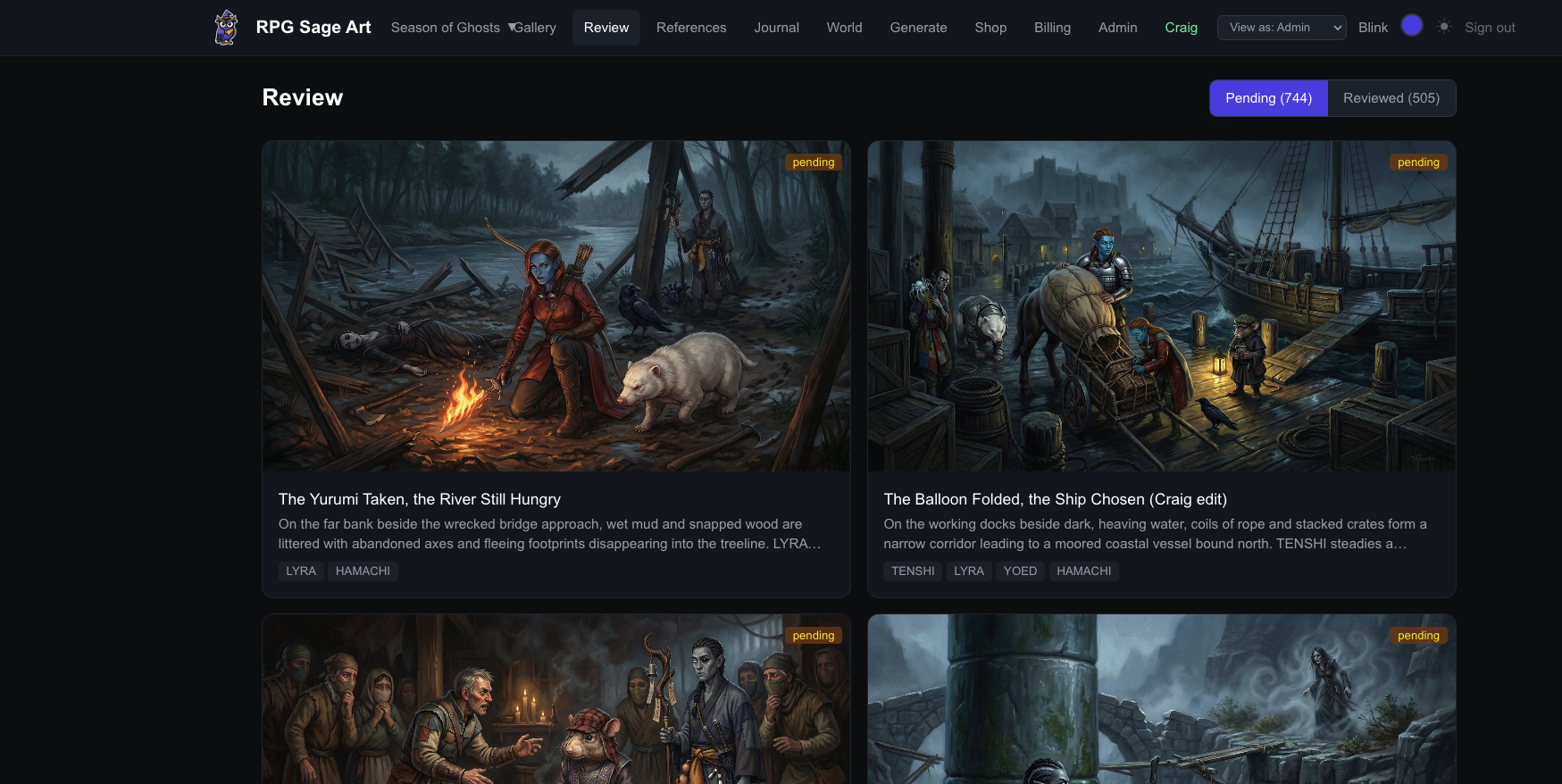
Image Detail
Click any image to see the full detail view — the enhanced prompt used to generate it, which characters appear, the reference images that were sent, and the full comment thread with Craig.